Many slideshow makers give you a dozen settings and leave the creative decisions to you. Pace, transitions, animation, music—each is a reasonable question, but together they can become a chore, especially when all you know is that the holiday photos should feel relaxed and the birthday ones should feel happy.
SlideFlow starts from that feeling. Style is the first row in the slideshow settings, and picking one sets the pace, the transitions, the photo animation, and the music together, so that the whole slideshow agrees with itself. Think of a style as a theme or a preset: one pick, and you are done—unless you want to go further, in which case every setting underneath is still yours to change. This guide explains what each style is for, what a style does and doesn’t touch, what the Custom label means, and what happens to music you picked yourself.
Pick a style
- Open a slideshow.
- Open the slideshow settings with the Customize button, or from the toolbar menu.
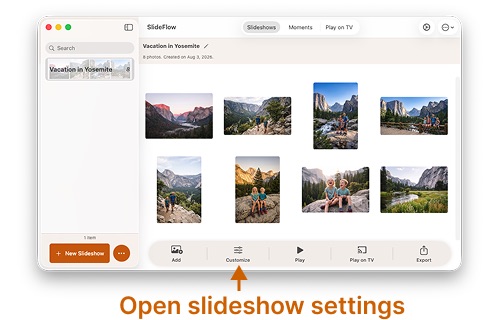
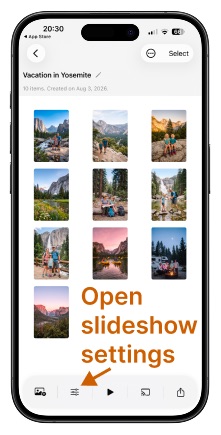
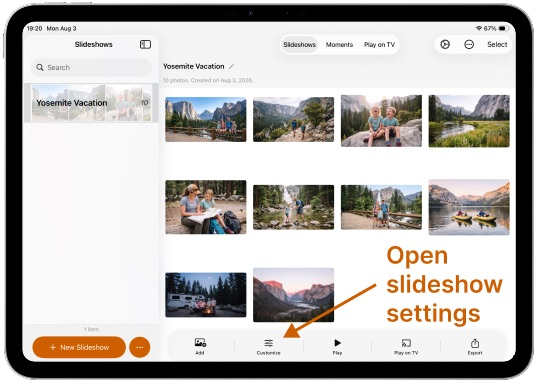
- Style is the first row. Click or tap it and pick a style from the menu.
- Play the slideshow. SlideFlow generates it on the fly, so you see the result within seconds—and if the mood is wrong, pick another style and play again.
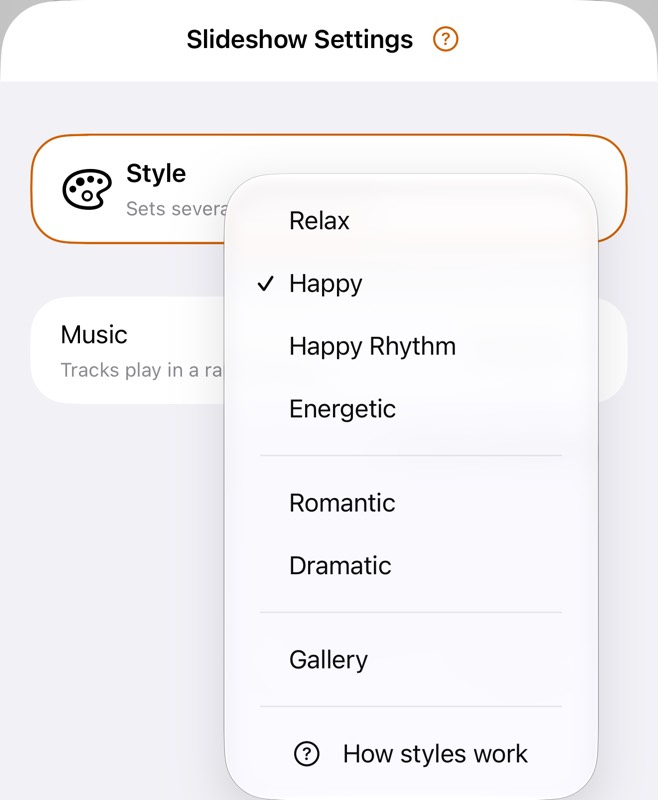
The steps are the same on Mac, iPhone, and iPad. The last item of the menu, How styles work, opens this guide.
What each style is for
The styles come in two groups. Five of them are moods, and they share their names with the five categories of SlideFlow’s built-in music—because picking a mood picks the music too. They differ in pace and in brightness: Relax and Romantic are the slow pair, bright and dark; Energetic and Dramatic are the fast pair, bright and dark; and Happy sits in the middle. The sixth, Happy Rhythm, is a second take on Happy. The seventh, Gallery, is not a mood but a use.
Relax is the slow, bright one. Photos hold for eight seconds, flow into each other through soft dissolves and a little drift, and zoom gently on the people or the subject in them. The music is calm and mostly without drums. For landscapes, a quiet weekend, a garden in summer—anything you want people to actually look at.
Happy is the default: what a new slideshow gets when you haven’t chosen anything else. Photos stay on screen for about five seconds, with timing adjusted so each change lands on the beat. A bright mix of dissolves, slides, and wipes, the occasional sparkle, gentle zooms on the subject, and upbeat music make it an all-purpose choice for family albums, trips, and anything cheerful.
Happy Rhythm is Happy’s music with a different cut: no transitions at all, just hard cuts timed to the beat about every four seconds, and a slow zoom in on each photo. It is the look of the short videos people make from their phones—photos snapping to the music while the picture drifts—without the restlessness of a two-second pace. Pick it when Happy feels too soft but Energetic feels too fast.
Energetic is the fast, bright one. About two seconds per photo, with hard cuts timed to the downbeats, no zoom at all, and driving, high-energy music. The cuts are the effect: at this pace a dissolve would only smear the moment of change, and the eye has no time to follow a drift anyway. For a party, a sports day, a highlight reel of a festival—lots of photos, not much time, and nobody expected to study them.
Romantic is the slow, dark one, and the slowest of the moods: ten seconds per photo, soft blends with the occasional warm glow of light passing over the lens, a gentle zoom on the people, and tender, unhurried music. For weddings, anniversaries, a couple’s year in pictures—photos that deserve time and warmth.
Dramatic is the fast, dark one: about three seconds per photo, timed to the beat, quick dissolves punctuated by impact cuts, a zoom in on the subject, and minor-key music that builds. The trailer idiom—a hit about every few bars, everything else kept tight. For an adventure trip, a race, a storm chased across a plain, anything with tension in it.
Gallery is for the slideshow nobody is watching start to finish: the one left looping on a TV at a gathering, in a shop window, or on a Mac as a photo frame. Twenty seconds per photo, a plain cross dissolve, no animation, Repeat slideshow switched on—and no music, because the room usually has its own, or wants none. It is the one style that takes music away rather than bringing it. It never touches music you added yourself, and where you hand-picked built-in tracks, it asks you first.
Which one to pick
| Occasion | Style |
|---|---|
| Family album, holiday, everyday photos | Happy |
| A trip or a party that should feel like a music video | Happy Rhythm |
| Party, festival, sports, a fast highlight reel | Energetic |
| Landscapes, nature, a quiet weekend | Relax |
| Wedding, anniversary, a couple’s year | Romantic |
| Adventure, a race, anything with tension | Dramatic |
| Looping on a TV, a shop window, a photo frame | Gallery |
When in doubt, play two of them. A slideshow starts within seconds, so comparing Happy with Relax on your own photos costs less time than reading about the difference.
What a style changes—and what it leaves alone
A style is a preset, not a mode. Picking one writes concrete values into a handful of the slideshow’s settings, and from then on the slideshow simply has those values. Nothing is locked, and nothing is hidden behind the style: open Show all settings and you’ll find the rows it wrote, each ready to be changed by hand.
The rows a style writes are the ones that make up a feel:
- Duration — how long each photo stays on screen.
- Slide transitions — the set of transitions SlideFlow varies among. For Energetic and Happy Rhythm the set is empty, which means a hard cut.
- Transition on music beats — whether slide changes are timed to the music.
- Animation — how a photo moves while it’s on screen.
- Music — the style’s tracks, under the rule described below.
Gallery additionally switches Repeat slideshow on, because looping is what it’s for.
Everything else is left exactly as it was: shuffle, the ending transition, filters, adaptive background, the video sound setting, overlays, and any settings you gave to individual photos or videos. A title card, a black-and-white look, or one photo held twice as long all survive a change of style.
Because a style is only settings, it behaves like settings everywhere else. The slideshow syncs to your other devices with its style, an exported video renders the look the style set up, and playing on a TV looks the same as on your screen.
Styles and the music beat
Four of the styles—Happy, Happy Rhythm, Energetic, and Dramatic—switch on Transition on music beats, so that photo changes land on the downbeats of the music rather than on a fixed timer. The shorter the transition, the more this matters, and with no transition at all it is essential: a hard cut on a timer looks like clicking through a folder, while the same cut on the beat is how a music video is edited—and sometimes looks better than any transition would. That is why Energetic and Happy Rhythm use no transitions at all. Relax and Romantic leave beat synchronization off on purpose: their slower dissolves and calm music gain little from beat timing. Gallery leaves it off too, since it plays without music and there is nothing to synchronize to.
Beat timing works with the built-in tracks on every Mac, iPhone, and iPad SlideFlow runs on; with your own music files it needs macOS 27 or iOS 27. It also depends on the music itself: the timing follows a clear, steady beat, and calm, ambient, or free-flowing tracks may offer none—the slides then simply keep their set duration. See transitions on music beats in the transitions guide for how the timing works.
Custom: when you change something by hand
Pick Happy, then change the duration to eight seconds, and the Style row no longer says Happy. It says Custom.
That is a description, not a mode and not a warning. It means: the settings below no longer match any one style—you have made them your own. Nothing was lost, and SlideFlow didn’t reset anything. Every row still holds the value you gave it, and the settings screen shows all of them, so you can see what you changed.
Two things follow from this. If you want a style back, pick it again—even the one you started from. It rewrites its rows and the label returns. And if you only ever adjust one thing, that is a perfectly good way to work: pick the style that is closest, then nudge the duration or thin out the transitions, and let the row read Custom. The label is for your information, not something to fix.
Only the rows a style writes count toward the match: duration, slide transitions, beat timing, animation—and, for Gallery, repeat. Changing the music, the shuffle, the ending transition, filters, or overlays never turns a style into Custom.
Slideshows you made before styles existed show as Custom too, for the same reason—their settings predate the presets—and keep playing exactly as they did.
Styles and your music
Six styles bring their own music: each uses the built-in tracks of its matching category. Happy and Happy Rhythm share the thirteen Happy tracks; the other styles use their respective categories. Gallery brings none. What a style does with the music a slideshow already has depends on where that music came from, and the rule is designed around one idea: the four visual and timing settings are easy to adjust again; a hand-picked playlist takes time to build.
- The slideshow has no music. The style’s tracks are added. Nothing to ask.
- The music is the full set of one built-in category—what a style, or a new slideshow, put there. It’s replaced with the new style’s tracks, without asking. You didn’t choose those tracks one by one, and the new style’s music is what you asked for.
- The music is built-in tracks you picked yourself—a few Happy tracks and something from Relax, say. SlideFlow asks: Replace the Music Too? Replace Music gives you the style’s tracks; Keep My Music applies the look and leaves your playlist alone. For Gallery the question reads Remove the Music Too?, since Gallery plays without music.
- Any of the tracks are your own—audio files from My Music, or a song from your Music app’s library. Your tracks are kept, no question asked, and the Style row notes Your music was kept. Your own music is your decision; a style only sets the look around it.
So a style never silently discards music you chose. The worst case is a question, and the answer that keeps your music is always one tap away.
The shuffle setting is not part of this. Shuffle tracks stays as it was, so a style’s tracks play in a random order by default like any others—see making a photo slideshow with music for how the music plays, and for everything about adding your own.
Fewer settings, until you want them all
With styles doing most of the work, the slideshow settings open folded: just Style and Music, the two choices of feel, with Show all settings underneath. Open that and the rest appears—General, Transitions, Photos, Overlays—with Show fewer settings at the bottom to fold it again. SlideFlow remembers which view you prefer, per device, and uses it on both the slideshow settings and the default settings.
There is one exception: while the slideshow shows as Custom, every setting is shown regardless, because some of those rows carry your changes and folding would hide them. As soon as the settings match a style again, your preferred view returns.
If you never open Show all settings, you lose nothing: a style covers the settings most people would change, and the Music row is right there for your own tracks. The full guide to every row is customizing slideshow settings.
A default style for new slideshows
The Default Slideshow Settings—in SlideFlow’s own settings, not inside a slideshow—have the same Style row at the top. Pick a style there and every slideshow you create from now on starts with it; slideshows you already made keep theirs. On a fresh install the default is Happy.
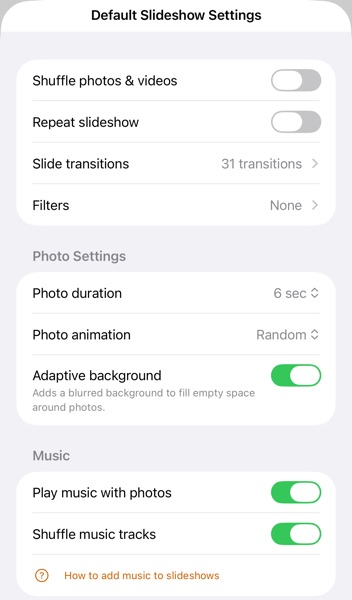
Right under it sits Start with built-in music, and its footnote names the music the default style brings: Adds the Happy tracks to each new slideshow, or whichever style you chose. Leave it on, and new slideshows arrive with that music; turn it off, and they start silent, ready for your own tracks. Make Gallery the default and the switch has nothing to add—new slideshows start without music either way, which the footnote says.
Edit one of the default rows by hand and the default Style reads Custom too, exactly as in a slideshow, and new slideshows then show Custom from the start. Like all defaults, the default style belongs to the device you set it on: your slideshows sync between your devices and carry their style with them, but the defaults don’t travel, so set them once per device.
A few tips
- Start with the style, then adjust. Pick the closest mood first, then change only what you want. It’s faster than setting everything by hand, and the result stays consistent.
- Match the style to the photos, not to the day. A wedding’s quiet portraits want Romantic; its dance floor wants Energetic. If the photos divide that cleanly, make two slideshows.
- Try Happy Rhythm before Energetic. You get much of the energy of hard cuts while giving people more time to see each photo.
- Gallery for anything left running. Scenery for a TV at a gathering, with the room’s own sound.
- Keep your playlist. Answer Keep My Music when a style asks, and only the look changes.
- Custom is fine. It means the slideshow is yours.
(Note: New to SlideFlow? The step-by-step tutorials for Mac or iPhone and iPad walk you through your first slideshow in a few minutes—then come back here to pick its mood. More questions are answered in the SlideFlow FAQ).