A photo slideshow without music feels like a film with the sound turned off. A good music track sets the pace, ties your photos together, and turns a sequence of images into a story your family and friends actually want to watch to the end.
With SlideFlow, you can create photo slideshows with music on Mac, iPhone, and iPad. It comes with a whole library of built-in music, so every slideshow you create already has a soundtrack—you don’t have to do anything. And when you want a specific song, you can add your own music too. This guide explains how music works in SlideFlow on Mac, iPhone, and iPad, and how to make it yours.
How SlideFlow plays music in your slideshow
Three things are worth knowing before you start picking tracks.
Music plays while your photos are on screen. A slideshow can freely mix photos and videos, and your videos usually bring their own sound with them. So the background music accompanies the photos, and steps aside for the videos—you hear what was actually recorded in the moment, not a song playing over it. Once the video ends and your photos return, the music comes back with a new track rather than resuming the interrupted one. The same can happen when you seek within a playing slideshow and jump to another photo or video.
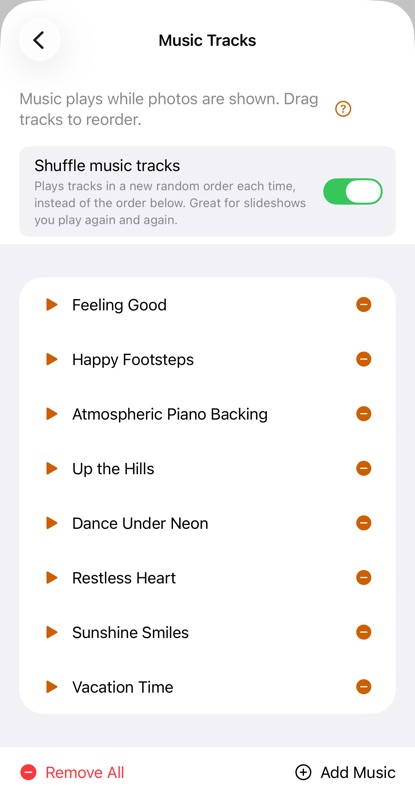
Tracks play shuffled, or in order. Every slideshow has a list of music tracks, and by default Shuffle music tracks is on, so SlideFlow picks the order randomly every time you play. That is deliberate: combined with the random track selection, it means every viewing feels like a new slideshow instead of a rerun of the same one. Watch it again next month, or leave it looping at a family gathering, and it won’t sound the way it did last time. Turn the setting off—it sits on the Music Tracks screen, right above the list of tracks—and they play one after another, in the order you see them. The toggle only appears once a slideshow has at least two tracks; with one track, or none, there is nothing to shuffle.
Music fades rather than cuts. Tracks fade in and out instead of snapping on and off, and the fade-out is timed to land exactly where the music has to give way. There are two such moments. One is a video that brings its own sound: the music dips away over the second before the video starts, so it steps aside rather than being chopped off the instant the video’s audio takes over—and fades back in when the photos return. The other is the end of the slideshow, where the music fades out over the last couple of seconds instead of stopping dead. If you’ve set an ending transition, the fade is stretched to match it exactly, so the music and the picture reach silence and black together. A repeating slideshow never reaches that end, so there the music simply carries on into the next pass.
By the same logic, a slideshow that opens with a video that has its own audio starts silent rather than playing a swell of music that would be cut a second later.
Built-in music: nothing to set up
SlideFlow includes thirty-eight built-in tracks, grouped into five moods—Happy, Party, Romantic, Relax and Tense—and new slideshows come with music already selected. Create a slideshow and press play: it already has a soundtrack, with no need to find music files or add tracks yourself.
Better still, that soundtrack isn’t the same every time. Each new slideshow gets a handful of built-in tracks picked at random, so your slideshows don’t all open with the same song—which would get boring fast if you make many slideshows.
That is the fastest path to a good result: add your photos and videos, and let SlideFlow’s default settings and music do the rest. Everything below is for when you want more control.
Adding your own music
You can replace or supplement the built-in tracks with your own music from two sources.
Audio files
Common audio files can be added on Mac, iPhone, and iPad. This is the most flexible option, and the one to use if you want the same music available everywhere: every audio file you add goes into your My Music library within SlideFlow, which syncs with your other devices over iCloud—so a song you add once is ready to use in any slideshow, on any of your devices.
My Music: one library for all your slideshows
My Music is the single home for your own music files, new in SlideFlow 4.0. Earlier versions copied an audio file into every slideshow that used it; now the file lives once in the shared library, and your slideshows refer to it from there. Add a track once and it’s available to every slideshow on every device—and if you add the same file a second time, SlideFlow notices and keeps a single library entry rather than a duplicate. (Photos and videos are different: for them, SlideFlow 4.0 lets you choose between copying files in and referencing them in place. Music files aren’t part of that choice—they always live in My Music.)
You’ll meet My Music in two places. While adding music to a slideshow, Add My Music in the Add Music menu shows your library, so you can pick from the tracks you’ve already gathered—and Import Files on that same screen brings in new audio files: they join your library and arrive selected, ready to add to the slideshow. And for housekeeping, open My Music from SlideFlow’s own settings: there too you can import files or simply drag & drop music onto the screen—entire folders of it included—and, in addition, remove tracks you no longer want, or use Remove Unused to clear out everything no slideshow plays anymore. Removing a track that slideshows still use warns you first, so you won’t silence a slideshow by accident.
Your Music library (iPhone and iPad)
On iPhone and iPad you can also pull songs straight from your Music library. It’s convenient, but there are three limitations to know about up front:
- It’s iPhone and iPad only. On Mac, only audio files can be used. This is the one real functional difference between the Mac and mobile versions of SlideFlow.
- It doesn’t sync. Music imported from the Music library stays on the one iPhone or iPad you imported it on. It won’t reach your other devices through iCloud, even if the slideshow itself does—see how music syncs across devices.
- Streamed music won’t work. The Music app has copyright restrictions, so you can only import songs you actually own—songs you imported yourself or purchased. Tracks that only exist as an Apple Music stream aren’t available.
None of these are SlideFlow’s choices—they follow from how Apple’s Music library works. If you want a specific song on every device, add it as an audio file instead.
How to add music to a slideshow in SlideFlow
- Open a slideshow.
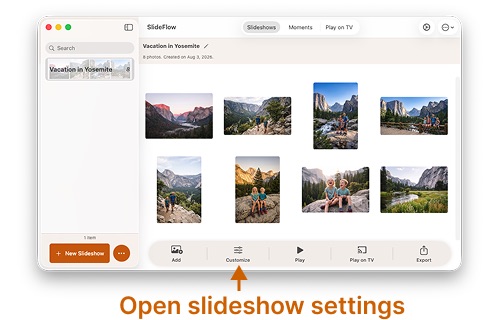
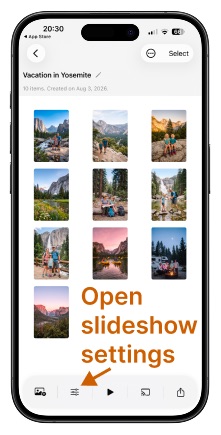
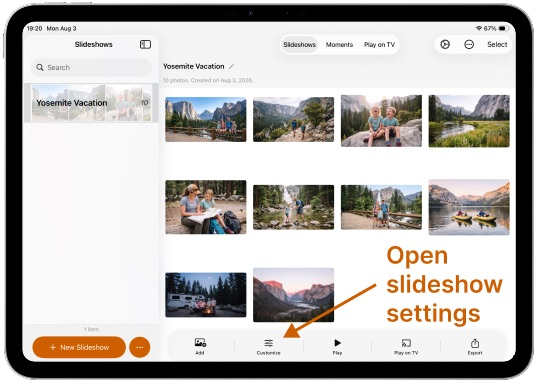
- Open the slideshow settings, for example using the Customize button.
- Click or tap Music in the General section. The row shows how many tracks the slideshow currently has.
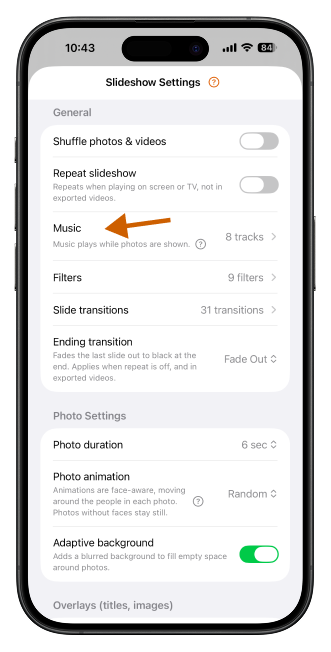
You are now on the Music Tracks screen, showing the tracks that play while this slideshow shows your photos. From here you can:
- Play tracks to preview them.
- Drag them to reorder, which matters when Shuffle music tracks is off.
- Remove the ones you don’t want, one at a time or all at once with Remove All.
- Add more with the Add Music button: built-in tracks, your own music from My Music, or—on iPhone and iPad—a song from your Music app’s library.
Shuffle music tracks sits at the top of this screen, above the list, once the slideshow has at least two tracks.
Add Music offers three sources. Add Built-in Tracks opens the library grouped by the five moods: play any track to audition it, tap a row to select it, and use Select All on a mood’s header to take that whole group—it turns into Deselect All once the mood is fully selected. The add button then counts what you have picked, reading Add 5 Tracks or however many it is, and adds them all in one go, in the order they appear on screen. So a couple of Happy tracks and something from Relax is one visit to the library rather than one visit per track. Add My Music opens your own music library within SlideFlow, where you pick from the tracks you’ve collected or use Import Files to bring in new audio files on the spot. And on iPhone and iPad, Add from Music App pulls a song from your Music app’s library.
There’s one more door for music files: drop them—or pick them—right in the slideshow’s grid of photos and videos, even mixed with media files in one go. Audio isn’t rejected there; it lands in the slideshow’s music, through My Music like any other audio file.
Turning the default music on or off
SlideFlow lets you define most settings at three levels—the Default Slideshow Settings for all newly created slideshows, the Slideshow Settings for one slideshow, and the Media Settings for a single photo or video. The first of those live in SlideFlow’s own settings rather than in a slideshow. Music works a little differently.
In the Default Slideshow Settings, music gets a section of its own with a single switch instead of a track list: Play music with photos. Leave it on, and every new slideshow you create gets its own random eight built-in tracks. Turn it off, and new slideshows start silent, ready for you to add exactly the tracks you want. Shuffle music tracks appears underneath the switch when it is on, and decides how new slideshows start out—it is the same setting you will find later on each slideshow’s Music Tracks screen.
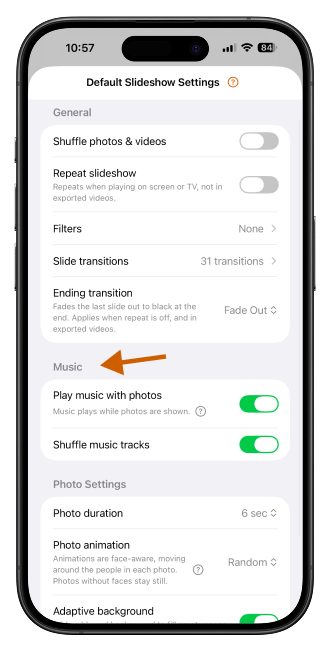
Everything else about music—which tracks play and in what order—belongs to the individual slideshow, on the Music Tracks screen described above. That is by design: a default list of tracks would mean every slideshow sounds the same, which is exactly what the random selection avoids.
A few tips for better results
- Match the music to the pace. A slow, calm track suits landscapes and portraits held a little longer on screen; something more upbeat suits a quick recap of a trip or a party.
- Add several tracks for longer slideshows. One song rarely covers a long slideshow comfortably, and a varied list keeps the mood moving.
- Turn shuffle off when the order matters. Shuffle is on by default, which is what you want for a slideshow you come back to: each viewing feels like a new slideshow rather than a rerun. But if you have a particular opening track in mind, or you want the mood to build from calm to upbeat, switch it off on the Music Tracks screen and arrange the tracks yourself by dragging them.
- Let the picture vary too. Shuffled tracks change what a slideshow sounds like on each play; creative filters restyle your photos and videos as they play, and a set of transitions varies how one gives way to the next. Together they make a slideshow you leave looping feel new on every pass.
- Watch it before you share it. SlideFlow generates slideshows on the fly, so playback starts almost immediately—trying a different track costs you seconds, not a full video re-render.
When you’re happy with the result, play it on your Mac, iPhone, or iPad, cast it to a compatible DLNA TV, or export it as a video in horizontal, vertical, or square format for YouTube, Instagram, or TikTok. Your music tracks are included in the exported video automatically—though the shuffle setting is resolved at export time, so the file keeps one particular order of the tracks.
(Note: New to SlideFlow? The step-by-step tutorials for Mac or iPhone and iPad walk you through your first slideshow in a few minutes—then come back here to customize the music. More questions are answered in the SlideFlow FAQ).