SlideFlow plays slideshows, and individual photos and videos, on your TV over your own network. Nothing is installed on the television, nothing is uploaded anywhere, and there is no cable involved.
Most of the time, connecting takes about ten seconds: switch the TV on, press Play on TV, and pick it from the list. When it takes longer than that, the cause is usually the network—and it is often one of a handful of specific things. This page covers both: how to connect, and what to check when the connection doesn’t happen.
In short: your TV and your Mac, iPhone, or iPad must be on the same local network, and the TV must support DLNA, which many smart TVs do. If your TV doesn’t appear in SlideFlow’s list, start by checking that both really are on that same network—devices that look like they are very often aren’t. If the TV appears but nothing plays, the firewall and the Wi-Fi are the usual suspects.
What you need
Three things—the first two are genuine requirements, the third is a matter of degree:
- A DLNA-capable TV. Many smart TVs from the last decade or so are. See which TVs work below.
- The same local network for both devices. Your TV and your Mac, iPhone, or iPad must be connected to the same router. Wi-Fi and Ethernet both work, and mixing them is fine—the TV on a cable and your Mac on Wi-Fi is a perfectly good, in fact preferable, arrangement.
- A reasonable network. Video data travels over your local network, so a modern router and a decent signal make the difference between a smooth slideshow and a stuttering one.
You do not need an internet connection, an account, a cable, an Apple TV, or a Chromecast. Nothing leaves your home: the pictures go from your device to your TV directly, over your own router.
How the connection works
Three separate things happen when you cast, and knowing which is which tells you where to look when something goes wrong.
Finding the TV. While SlideFlow is showing the list of TVs, it searches the local network continuously for devices that can play media—the DLNA/UPnP discovery your TV takes part in by default. A TV that is switched on and on the same network usually shows up within seconds. There is no pairing step, no code to type, and no account: if the TV can be reached, it appears in the list, and if the network is in the way, it never does.
Sending the picture. Once you pick a TV, your Mac, iPhone, or iPad starts a small web server, and the TV connects back to it to fetch what it should show—a video stream for a slideshow, a still image for a single photo. That direction matters more than it sounds: it means an incoming connection has to be allowed on your Mac, which is exactly what a firewall may block. It also explains the most confusing failure of all, where the TV is found perfectly well but nothing ever appears on the screen.
Generating as you watch. Unlike traditional slideshow makers, SlideFlow doesn’t render a video file and then hand it over—it generates the slideshow on the fly, which is why playback starts almost immediately instead of after a long wait, and why you can change a setting and watch the result straight away. The trade-off is that your Mac, iPhone, or iPad is doing that work for as long as the show runs, so it has to stay awake and on the network. SlideFlow keeps it from going to sleep by itself, but quitting the app, or carrying the phone out of Wi-Fi range, ends the slideshow on the television too.
Everything travels over your local network, at local network speeds. Your internet connection is not involved, and no photo of yours passes through anyone’s server.
Connecting to your TV
- Switch the TV on, and make sure it is on the same network as your Mac, iPhone, or iPad (how to check if you aren’t sure).
- Press Play on TV in SlideFlow. With a slideshow open, the Play on TV button is in the toolbar along the bottom of the window, on every device—on Mac there is also the menu Slideshow → Play on TV, or ⌘T. To cast individual photos and videos instead, switch to the Play on TV mode: it is one of the choices on the app’s main screen on iPhone, and sits in the toolbar at the top of the window on Mac and iPad.
- Pick your TV from the list of detected devices. The list fills in as SlideFlow searches, so give it a moment: a TV usually appears within seconds, but one that has just been switched on can take considerably longer to announce itself on the network—often longer than it takes for a picture to appear on its own screen. Keep the list open while you wait, and the TV will turn up on its own.
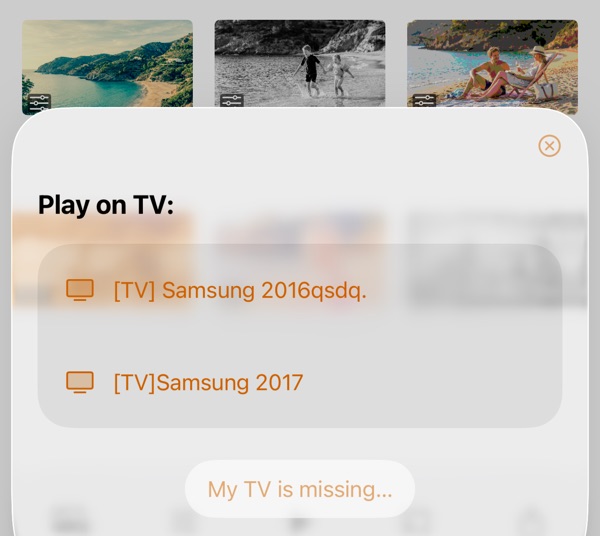
- Allow the connection on the TV, if it asks. Samsung TVs in particular ask for permission the first time a device sends them something. Take the TV’s remote control and allow it.
- Watch. Playback starts after a few seconds. A slideshow or a video gets a small panel on your device, where you can pause, resume, stop, and move around: tap any item in a slideshow’s filmstrip to jump straight to it, or drag the slider to scrub through a video, with a preview of the frame you’re aiming at as you drag. A single photo needs none of that—it simply stays on the TV until you pick another one. In Play on TV mode, the Disconnect TV button releases the television when you’re finished.
That is the whole procedure, and it is the same on Mac, iPhone, and iPad. Once a TV has been used, connecting to it again is a two-tap affair—there is nothing to set up a second time.
Which TVs work with SlideFlow
SlideFlow casts over DLNA, the open standard that many smart TVs have supported for years. There is no app to install on the TV, and nothing to configure beyond having DLNA switched on, which it usually is by default.
We have tested SlideFlow with Samsung (2012 and later), LG (2012 and later), and multiple generations of Sony, Panasonic, and Philips TVs. Other DLNA-capable devices are expected to work as well. TV models vary enormously, though, and we can’t promise compatibility with every one of them—if you are unsure about yours, SlideFlow is free to download and try, and detecting your TV takes about a minute.
A note on what is not supported: SlideFlow does not use AirPlay or Google Cast, so an Apple TV or a Chromecast is not a target it can send a slideshow to. On those devices, use your system’s own Screen Mirroring and play the slideshow full screen on your Mac, iPhone, or iPad—the TV then shows whatever your device’s screen shows. It is a different mechanism with different trade-offs, but it gets your slideshow onto the television.
Check that both are on the same network
This is the one thing worth verifying before anything else, because nearly every failed connection comes back to it. If you have never checked, it takes a minute:
- On the TV, open the network settings. The wording differs by brand and model year, but it is always somewhere obvious under Settings—General → Network → Network Status on many Samsung sets, All Settings → Network on LG, Network & Internet on Sony and Philips models running Google TV, Network → Network Status on Panasonic. What you want from that screen is two things: whether the TV is connected by Wi-Fi or by cable, and the name of the network it is using.
- On your Mac, iPhone, or iPad, look at the Wi-Fi settings and note the network you are connected to. On a Mac plugged into Ethernet, check which connection is active in System Settings → Network.
- Compare the two. If both show the same Wi-Fi network name, you are set. If the TV is on a cable and your device is on Wi-Fi, that is fine too, as long as the cable goes to the same router. Trouble starts when the names differ—a guest network, or a second router or extender with a name of its own—and the fix is to switch the TV, or your device, so that both are on the same one. A network whose 2.4 GHz and 5 GHz bands have separate names (MyWiFi and MyWiFi-5G) is usually still a single network, and casting across the two normally works; on a mesh system, or a router that keeps its bands apart, it may not, so putting both devices on the same band is worth a try.
That network status screen usually shows the TV’s IP address as well. If the network names leave you unsure, compare the addresses—they should normally be in the same subnet, which on a home router means they look alike apart from the last number.
If your TV doesn’t appear in the list
This usually means the TV and your Mac, iPhone, or iPad are not actually on the same network, even when it looks like they are.
- Switch the TV on and give it a minute. SlideFlow searches continuously while the TV list is open, and a TV that has just been switched on can take a while to announce itself on the network.
- Compare the IP addresses. Open the network status on the TV and note its IP address, then do the same on your Mac, iPhone, or iPad. The two should normally be in the same subnet, which on a typical home router means the addresses look alike apart from the last number—say 192.168.1.100 for your Mac and 192.168.1.101 for the TV. If they look nothing like each other, 192.168.1.100 against 192.168.2.15 or 10.0.0.8, that is a strong sign the two are on different networks: a guest Wi-Fi, a second router or extender, or wireless bands that aren’t bridged.
- Turn off any VPN. A VPN on your Mac, iPhone, or iPad sends your traffic off to somewhere else entirely, and SlideFlow’s search for the TV goes with it. Disconnect it while you cast. This catches people out more than anything else on this list, because an always-on privacy or ad-blocking VPN sits there quietly for months without ever announcing itself.
- Check that SlideFlow is allowed to use your local network. iOS, iPadOS, and recent versions of macOS ask permission the first time an app looks for devices on your network, and if that prompt was declined—or never appeared—SlideFlow cannot see your TV at all. On iPhone and iPad, look under Settings → Privacy & Security → Local Network; on Mac, under System Settings → Privacy & Security → Local Network (macOS 15 Sequoia and later). SlideFlow has to be switched on there. If it isn’t in that list at all, open the TV list in SlideFlow once and look again—an app only appears there after it has asked.
- Check for multiple active connections on your Mac. A Mac with both Ethernet and Wi-Fi active, or one hopping between hotspots, may be looking for the TV on the wrong interface. Disable everything except the one you want to use.
- Look for device isolation on the router. Some routers stop devices on the network from seeing each other at all—the setting is called AP isolation, Client isolation, or Wireless isolation, depending on the brand, and it is normally switched on for a guest network and off for the main one. Where it is on, no app on your phone can find the TV, however well both are connected. Switch it off for the network you are casting on.
- Restart the app. Quit it completely—SlideFlow → Quit SlideFlow on Mac, or swipe the app away on iPhone and iPad—and launch it again.
- Reboot the TV. Many TVs need to be unplugged from the wall to genuinely reset; the remote’s power button only puts them to sleep. After rebooting, test SlideFlow before opening any other app on the TV—some TV software disables DLNA while it runs.
- Reboot the router. Power it off and back on. Routers that have been running non-stop for months get slow and forgetful about local devices.
A short version of this advice is available inside the app as well, behind the My TV is missing… button in the TV list.
If the TV is found, but nothing plays
The TV is on the list, you picked it, and the screen stays where it was. This is the other half of the connection—your television trying to fetch the picture from your device—and these are the things that get in its way.
- Allow the connection on the TV. Samsung TVs in particular ask for permission the first time. Take the TV’s remote control and allow it. If you refused by accident, you will need to change it in the TV’s settings.
- Check your firewall—on Mac. Your TV connects back to your Mac to fetch the video stream, so a blocked incoming connection stops playback dead. If macOS asks whether to allow an incoming connection when you start playing, say yes. If you dismissed it earlier, open the firewall settings and allow SlideFlow manually. iPhone and iPad have no firewall of this kind; there, the equivalent is the Local Network permission above.
- Turn off any VPN. A VPN blocks this half of the connection as surely as it blocks the first one: your device is answering from somewhere the television cannot reach. If a TV is found but never shows anything, and you have a VPN running, that is the thing to switch off.
- Look at your Wi-Fi quality. A video stream is a lot of data. Router, TV, and your device should ideally be close to each other, and a wall or two between them makes a visible difference. Connecting the TV to the router with a network cable is the single most effective fix; if you stay wireless, a Wi-Fi 5 (802.11ac) or newer router is recommended.
- Restart everything. The TV, the router, and your Mac, iPhone, or iPad—powered off and back on, not merely put to sleep.
- Complex or managed networks may not work at all. College, office, and hotel networks often put devices on separate subnets, or block the direct device-to-device traffic DLNA depends on. Your device and the TV must be able to reach each other on their local IP addresses, and on a large managed network they frequently can’t.
Two things, finally, that are not faults. A slideshow ends when you quit SlideFlow, or when you carry your phone out of Wi-Fi range: it is generated as it plays rather than handed over as a finished file, so it lasts exactly as long as your device keeps sending it. And in SlideFlow’s unlimited free trial mode, a promotional frame appears on the television from time to time between your own photos—full access through a subscription or the one-time lifetime purchase removes it.
Still stuck?
If you have been through both lists and your DLNA-capable TV still refuses to cooperate, write to us. It helps enormously if you say which TV you have (brand, model, and roughly which year), which device you are casting from, and—the most useful detail of all— whether the TV appears in SlideFlow’s list at all. That one answer tells us which half of the connection is failing, and it is usually enough to point you at the fix.
(Note: New to SlideFlow? The step-by-step tutorials for Mac or iPhone and iPad walk you through your first slideshow in a few minutes—then play it on your TV. You can also play your photos and videos on TV. More questions are answered in the SlideFlow FAQ).