Someone asks whether you have photos from the trip, and within a minute four people are leaning over one phone, taking turns to hold it. It is the most common way photos get shown, and the worst one—the picture is two inches wide, only one person can see it properly, and whoever owns the phone has to keep handing it over.
SlideFlow has a mode for exactly this. Play on TV turns your television into the screen and your Mac, iPhone, or iPad into the remote: browse your photo library on the device in your hand, pick a photo, and it appears on the TV at full size. Pick the next one and the TV changes. Videos play the same way, with their sound. Nothing is exported, nothing is uploaded, and no slideshow needs to be built first.
In short: open Play on TV, pick your TV from the list, choose where your photos and videos live—the Photos library, an album, or files—and select an item to put it on screen. You need a DLNA TV on the same local network as your device, which is covered in Connect SlideFlow to your TV. If you would rather have the pictures advance by themselves, with music and transitions, make a slideshow instead.
When this is better than a slideshow
A slideshow runs on its own: it decides when to move on, adds transitions and music, and keeps going until it ends or you stop it. That is what you want for an evening in the background, or for showing a finished piece of work.
Casting individual photos and videos is the opposite, and it suits a different kind of evening:
- The conversation sets the pace. A photo stays on the screen for exactly as long as people are still talking about it—ten seconds or ten minutes. Nothing moves until you decide.
- Nothing to prepare. No slideshow to assemble, no settings to think about. Open the app, pick a TV, and start showing pictures.
- Anything in your library, immediately. Including the photos and videos you took an hour ago, and the ones you never got round to sorting.
- You can follow requests. What about the one from the beach? Find it in the grid, and it’s on the television a second later.
The two aren’t exclusive, of course. A common evening starts with a slideshow running by itself and turns into people asking to see particular pictures—and switching between the two takes a couple of taps.
How to play a photo or video on your TV
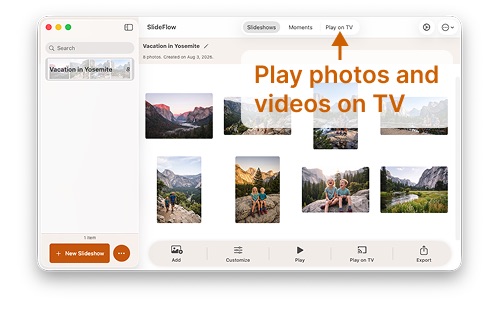
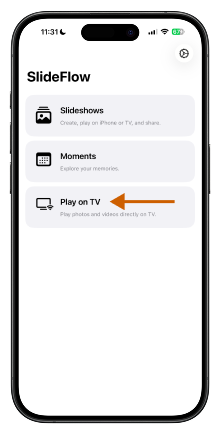
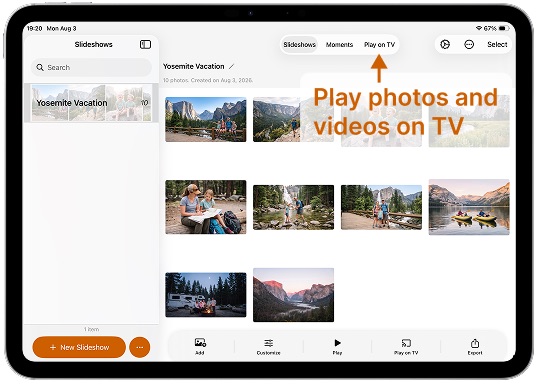
- Open Play on TV. On iPhone it is one of the choices on the app’s first screen; on Mac and iPad it sits in the toolbar at the top of the window, next to Slideshows and Moments.
- Pick your TV from the list of detected devices. The first time you cast, your iPhone, iPad, or Mac asks for permission to find devices on the local network—allow it, or the list stays empty. If the TV still isn’t there, this guide walks through why.
- Choose a source in the sidebar—your whole photo library, your favorites, one of your albums, or files and folders. More on those below.
- Select a photo or video. It appears on the TV within a few seconds. Select the next one, and the television switches to it.
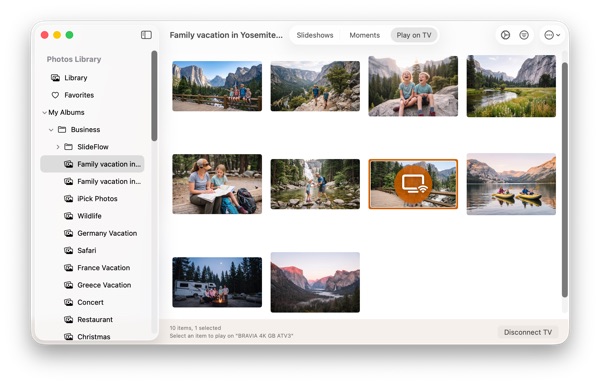
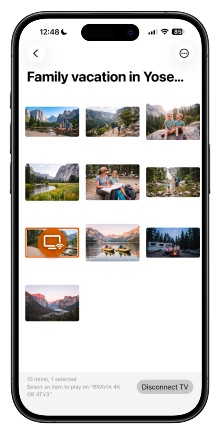
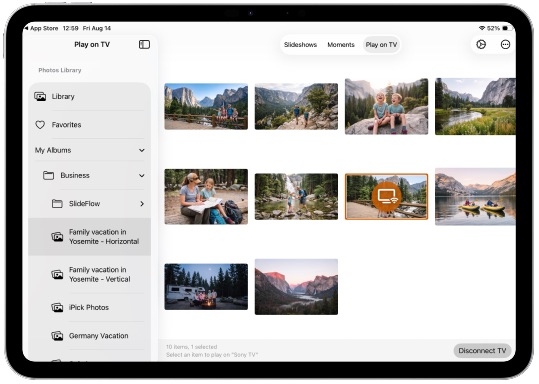
- When you’re finished, press Disconnect TV. The television is released and goes back to whatever it was doing.
Videos work exactly like photos—select one and it starts playing on the TV, with its sound. The difference is that a video gets its own small panel on your device while it runs, with pause, resume, stop, and a slider to move through it. Drag that slider and a preview of the frame you’re aiming at appears on your device as you go, so you can find the moment you want—the goal, the candles going out—without hunting for it on the television in front of everyone. Photos need none of that: they simply stay on screen until you choose something else.
Videos play the same way here as inside a slideshow—the same streaming, similar controls—so expect the same short delay before one starts, while the TV buffers enough of the stream to play it smoothly. A few seconds is normal. The same delay applies to everything else you do with the video: pause, resume, and jumping to another moment each take a beat to reach the television, so give it a second before deciding a tap didn’t register.
Your device is the remote
This is the part that makes the difference in a room full of people. The television shows the photo or video and nothing else—no grid, no interface, no filenames. All of that stays on the device in your hand, which means you can look for the next picture while everyone is still looking at the current one.
A few things follow from that:
- Nobody has to crowd around you. The phone is not the exhibition any more, it’s the control surface. Everyone watches the same big picture instead.
- Pass it around. Hand the device to whoever is telling the story and they choose what the room sees next. It’s a more sociable arrangement than one person driving all evening.
- On Mac, use the arrow keys. With the photo grid in focus, the arrow keys step from one photo to the next, and each one goes straight to the TV. It is the closest thing to a slide advance button, and it means you can sit back from the keyboard and just tap through.
- Make the thumbnails suit you. Zoom the grid in or out, and switch filenames on when you need to tell similar shots apart.
Where your photos and videos can come from
The sidebar collects every place SlideFlow can show photos and videos from:
- Your Photos library, in full, plus Favorites as a shortcut.
- My Albums, including albums nested inside folders, and Smart Albums—so an album you built for the occasion is one tap away.
- Imports, for files that aren’t in Photos: add them with the Add Media button (⌘O on Mac) or drag them into the window. Imports are temporary, and SlideFlow only remembers them while it is running—quit the app and the list is empty next time.
- Folders, on Mac only, for the folders you come back to often. Add a folder once and SlideFlow remembers it between launches, so a folder of exported work stays one click away.
That last point is the one real difference between the platforms. On Mac you have three sources: the Photos library, temporary Imports, and permanent Folders. On iPhone and iPad there are two—the Photos library and Imports—because iOS doesn’t let an app keep standing access to folders the way macOS does.
In practice, if the same folder comes out every time you have people over, a Mac is the device that remembers it for you. On iPhone and iPad, the way to keep a set of photos and videos permanently one tap away is to put them in a Photos album, or to collect them into a slideshow—files imported into a slideshow are kept for good, unlike the Imports in Play on TV. Both work on every platform.
Within a source you can filter and sort what you see: photos only, videos only, favorites only, screenshots hidden, newest first or oldest first. Useful when you are looking for one particular picture in a library of thousands while a room waits—and useful in a quieter way for keeping screenshots and receipts out of the grid you’re paging through.
What the TV actually receives
Photos are sent at up to 4K, so compatible 4K TVs can display them at up to 4K resolution. Larger images are scaled down to 4K before they’re sent, to prevent display issues on some TVs; nothing else about them changes.
Videos are a little different: SlideFlow encodes them in real time and streams the result to the TV in a format designed for broad TV compatibility, together with the sound. That is deliberate—re-encoding every video means the TV gets something it can definitely play, so you never have to wonder whether a particular file is one your television understands. Whatever the original was, the TV receives the same reliable stream. Because that stream runs slightly ahead of what the TV shows, expect the picture on the television to lag a few seconds behind your taps—normal, and the reason a video keeps playing for a moment after you stop it.
All of it travels over your own network, directly from your device to the television. Your internet connection isn’t involved, and none of your photos or videos pass through anyone’s server.
What you need
- A DLNA-capable TV—many smart TVs from the last decade or so, including Samsung and LG from 2012 onwards, and multiple generations of Sony, Panasonic, and Philips.
- The same local network for the TV and your Mac, iPhone, or iPad. Wi-Fi and Ethernet both work, and mixing them is fine.
No cable, no account, no Apple TV, no Chromecast, and no internet connection. If your TV doesn’t appear in the list, or appears but won’t show anything, Connect SlideFlow to your TV goes through the causes one by one—it is nearly always something specific and fixable about the network.
One thing to know before an evening in front of an audience: in SlideFlow’s unlimited free trial mode, a promotional screen appears on the TV from time to time between your photos and videos. Full access through a subscription or the one-time lifetime purchase removes it. Current pricing is on the App Store.
When to build a slideshow instead
Reach for a slideshow when you want the pictures to carry themselves: an evening running in the background, a set of photos with music and transitions, or something you’ve arranged deliberately and want to show as a piece. Slideshows can also loop and shuffle, so they never quite repeat, and they can be exported as video files to share with people who weren’t in the room.
Play on TV is for the other half of the evening—the part where people are asking questions, and the next picture depends on the answer.
(Note: New to SlideFlow? The step-by-step tutorials for Mac or iPhone and iPad walk you through your first slideshow in a few minutes, if you’d rather have one that plays by itself. You can then play your slideshows on TV. More questions are answered in the SlideFlow FAQ).