Want to play a photo slideshow on your TV? SlideFlow lets you cast a slideshow from your Mac, iPhone, or iPad to a DLNA TV over your local network, without exporting a video or connecting a cable.
A slideshow is at its best when it is watched together. On a phone or a laptop, photos are something you show one person at a time, leaning over their shoulder; on the television in the living room, everyone sees the same picture at the same moment—at a family gathering, a birthday, or a quiet evening going back through last summer. And a TV is usually the largest screen in the house, often the best one too, so your photos get more room and more detail than a handheld screen can give them.
SlideFlow plays your slideshows straight to your TV over your own network. There is no cable to plug in, no file to export first, and no upload to anything. Your Mac, iPhone, or iPad generates the slideshow as it plays and sends it to the TV, so you can start watching within seconds of finishing a slideshow—and change it and play it again just as quickly. That speed counts for more than it sounds when there are people in the room: someone asks for the photos from the beach day, and you can add them and start again before the conversation has moved on.
In short: connect your TV and your Mac, iPhone, or iPad to the same local network, open a slideshow, press Play on TV, and pick your TV from the list. SlideFlow supports DLNA-capable TVs, which covers many smart TVs from the major brands. You can also cast individual photos and videos, not just slideshows. If your TV doesn’t show up in the list, it is usually a network issue, and Connect SlideFlow to your TV goes through the causes one by one.
What you need
- A DLNA-capable TV. Many smart TVs from the last decade or so are, including Samsung and LG from 2012 onwards, and multiple generations of Sony, Panasonic, and Philips.
- The same local network for both devices. Your TV and your Mac, iPhone, or iPad must be connected to the same router. Wi-Fi and Ethernet both work, and mixing them is fine.
- A reasonable network. Video data travels over your local network, so a modern router and a decent signal make the difference between a smooth slideshow and a stuttering one.
You do not need an internet connection, an account, a cable, an Apple TV, or a Chromecast. The slideshow goes from your device to your TV directly, over your own router. The requirements, the supported TVs, and everything that can go wrong in between are covered in Connect SlideFlow to your TV.
How playing on TV works
SlideFlow doesn’t render a video file and then send it. It generates the slideshow on the fly and streams the result to the TV as it goes—photos, animations, transitions, filters, overlays, and music, all encoded in real time and sent over your local network as a video stream. The TV, for its part, simply plays a video stream it was handed; it doesn’t need an app, an account, or anything installed.
Three consequences of that design are worth knowing before you start.
Playback starts almost immediately. There is no rendering step to wait through, which means casting is also the fastest way to check your work on the screen it is actually meant for. Try a different music track, a different set of transitions, a different filter, and play again—each round costs you seconds rather than a full render.
The TV can run a few seconds behind your device. SlideFlow generates and sends the stream slightly ahead of what the TV shows, which is what keeps playback smooth. The playback panel in the app tells you as much: the photo highlighted there may be a few seconds ahead of what you see on the TV screen. It is worth remembering when you pause or stop—the TV takes some time to catch up with you.
Your device does the work for the whole show. It is generating and sending the slideshow from the first photo to the last, so it has to stay awake and on the network throughout. SlideFlow keeps it from going to sleep by itself; leaving it plugged in is a good idea for a long evening, and quitting the app or letting the phone leave the Wi-Fi ends the slideshow on the TV as well.
How to play a slideshow on your TV
The steps are the same on Mac, iPhone, and iPad. The interface differs a little, because SlideFlow is designed for each platform, but nothing about the procedure changes.
- Switch the TV on, and make sure it is on the same network as your Mac, iPhone, or iPad.
- Open the slideshow you want to play.
- Click or tap the Play on TV button, in the toolbar along the bottom of the window. On Mac there is also a menu item and a keyboard shortcut for this step: Slideshow → Play on TV, or ⌘T.
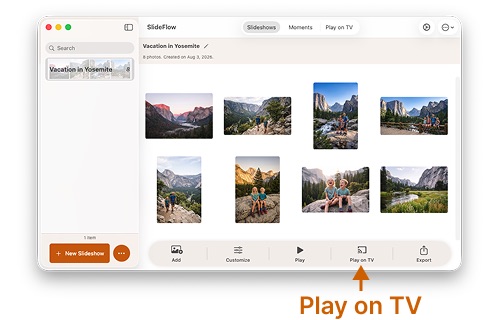
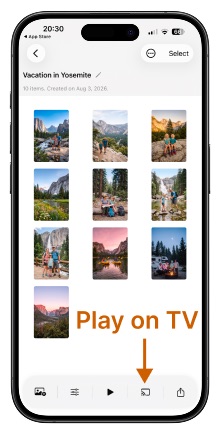
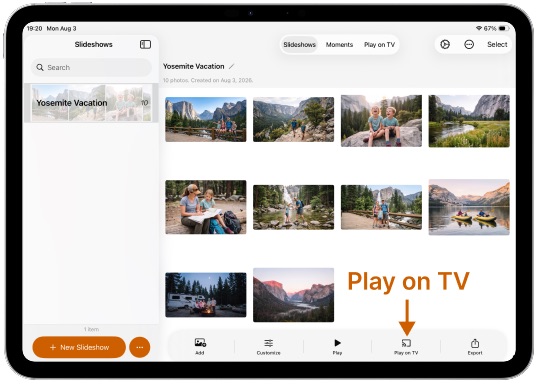
- Pick your TV from the list of detected devices. The first time you cast, your iPhone, iPad, or Mac asks for permission to find devices on the local network—allow it, or the list stays empty. If it was declined at some point, it can be switched back on under Privacy & Security.
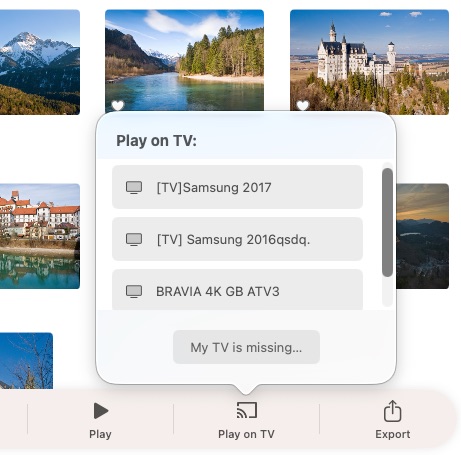
- Wait a few seconds while the slideshow starts. Some TVs—Samsung in particular—ask for permission the first time a device sends them something. If a prompt appears on the screen, take the TV’s remote control and allow it.
- Watch. The app shows a small playback panel with the slideshow’s filmstrip, so you can see where you are, pause and resume, and stop when you’re done. Everyone else watches the TV; your device stays in your hand as the remote, and pausing on a photo someone wants to talk about is one tap away.
That panel is more than a stop button. Tap any photo or video in the filmstrip and the slideshow jumps straight to it—which is what you want when someone asks to go back two pictures. While a video is playing, the slider scrubs through it, and a preview of the frame you’re aiming at appears as you drag, so you can land on the right moment without hunting for it on the television. Give the TV a few seconds to catch up afterwards: it is playing a little behind you.
When the slideshow reaches its end, the music fades out gently—matched to the ending transition, if you’ve set one—then SlideFlow shows a closing frame on the TV and stops casting on its own, so the television isn’t left holding the last photo indefinitely. If you’d rather it never ended, that’s what the next section is about.
Settings that matter when a room is watching
Everything you see when the slideshow plays on your device is what the TV gets: your transitions, the face-aware animations, the creative filters, the titles and image overlays, and the music, including the sound from any videos in the slideshow. There are two settings, though, that are worth revisiting specifically because you are playing to a room.
Repeat slideshow. Turn it on and the slideshow loops for as long as you leave it running. This is the setting that turns a slideshow into an ambient background for a party or a family dinner—it simply keeps going while people talk, glance up, and go back to their conversation. Repeat works when playing on your screen or on a TV; it has no meaning in an exported video file, which is one of the reasons casting is often the better choice for an event.
Shuffle. With repeat switched on, shuffling is what keeps the loop from becoming wallpaper. With the relevant shuffle and variation settings enabled, SlideFlow can vary the order of the photos, the transitions, the filters, and the music on every iteration, so the second time round is not the same slideshow again. A hundred photos on repeat and shuffle will hold a room’s attention for an entire evening.
One more thing worth settling before an evening in front of an audience: in SlideFlow’s unlimited free trial mode, the TV shows occasional promotional frames along with your photos. Full access through a subscription or the one-time lifetime purchase removes them. Current pricing is on the App Store.
Slideshows for a gathering
Casting comes into its own when there are people around, and a few small choices make the difference between photos playing in the corner and photos everyone actually watches.
- Start it before the guests arrive. With repeat and shuffle already set, the slideshow looks after itself for the rest of the evening. Nobody has to operate anything, and there is no moment where the room waits for you to set something up.
- Name the occasion. A title overlay with a name and a date—Anna’s 40th, Summer in Portugal—tells everyone what they are looking at, and gives the evening its opening frame.
- Take requests. When someone asks about one particular photo, switch to Play on TV mode, find it, and put it on the screen at full size while the story gets told. Then start the slideshow again.
- Let the memories find themselves. If the conversation turns to a trip nobody has looked at in years, Moments will group those photos for you by when and where they were taken—a slideshow of that trip, ready to cast, without building anything first.
- Mind the sound. Music carries a room, but it also competes with it. Something quiet under conversation at dinner, something with more life when everyone has gathered to watch.
Cast single photos and videos to your TV
Slideshows are not the only thing SlideFlow sends to a TV. A dedicated Play on TV mode casts individual photos and videos—useful when someone asks to see that one picture and you don’t want to build a slideshow around it. You browse your Photos library on your device, select an item, and it appears on the television; select the next one and the TV switches to it, with your phone or Mac acting as the remote.
Playing your photos and videos on TV covers that mode in full: where the pictures can come from, how videos behave, and why handing the device around is the most sociable way to show photographs to a room.
Play on TV, or export a video?
Both get your slideshow onto a big screen, and they’re good at different things.
Casting is instant, needs no storage, plays at whatever length your slideshow happens to be, and loops. It is the right choice for watching at home, for previewing while you’re still editing, and for anything running in the background at a gathering.
Exporting a video file is the right choice when the slideshow has to leave your devices—uploaded, sent to someone, or played on a TV that isn’t yours. An exported file also plays back perfectly smoothly, because nothing is being computed while it plays; if you are about to show a long slideshow to an audience on an older device, exporting it first and playing the file is the safer bet. For a TV, export in horizontal 16:9, at 4K if the television supports it.
If your TV isn’t found, or playback fails
Most problems here are network problems, and the two symptoms point in different directions. A TV that never appears in the list is usually not on the same network as your device after all—a guest Wi-Fi, a second router, a VPN running on the phone or Mac, or a router set to keep wireless devices from seeing each other—even when everything looks right. A TV that appears but shows nothing is usually a firewall blocking the incoming connection the television makes to fetch the stream, or a Wi-Fi signal too weak to carry it.
Both cases are worked through cause by cause in Connect SlideFlow to your TV, along with the full list of tested televisions and what to do about an Apple TV or a Chromecast, which speak different protocols and are not targets SlideFlow can cast to.
Once the slideshow is up on the screen, all of this disappears, which is rather the point. The room is looking at the same photograph at the same time, someone remembers where it was taken, and the evening carries on from there.
(Note: New to SlideFlow? The step-by-step tutorials for Mac or iPhone and iPad walk you through your first slideshow in a few minutes—then come back here to play it on your TV. You can also play individual photos and videos on TV. More questions are answered in the SlideFlow FAQ).